


Coresignal Monitors now work with Slack. Along with email and custom webhook URL delivery, you can get Monitors updates in your team’s Slack channel. Changes to the companies and professionals you track reach the whole team, not just one inbox. Setup requires no code, so your team can see and act on updates in the place it already works.
What are Coresignal Monitors?
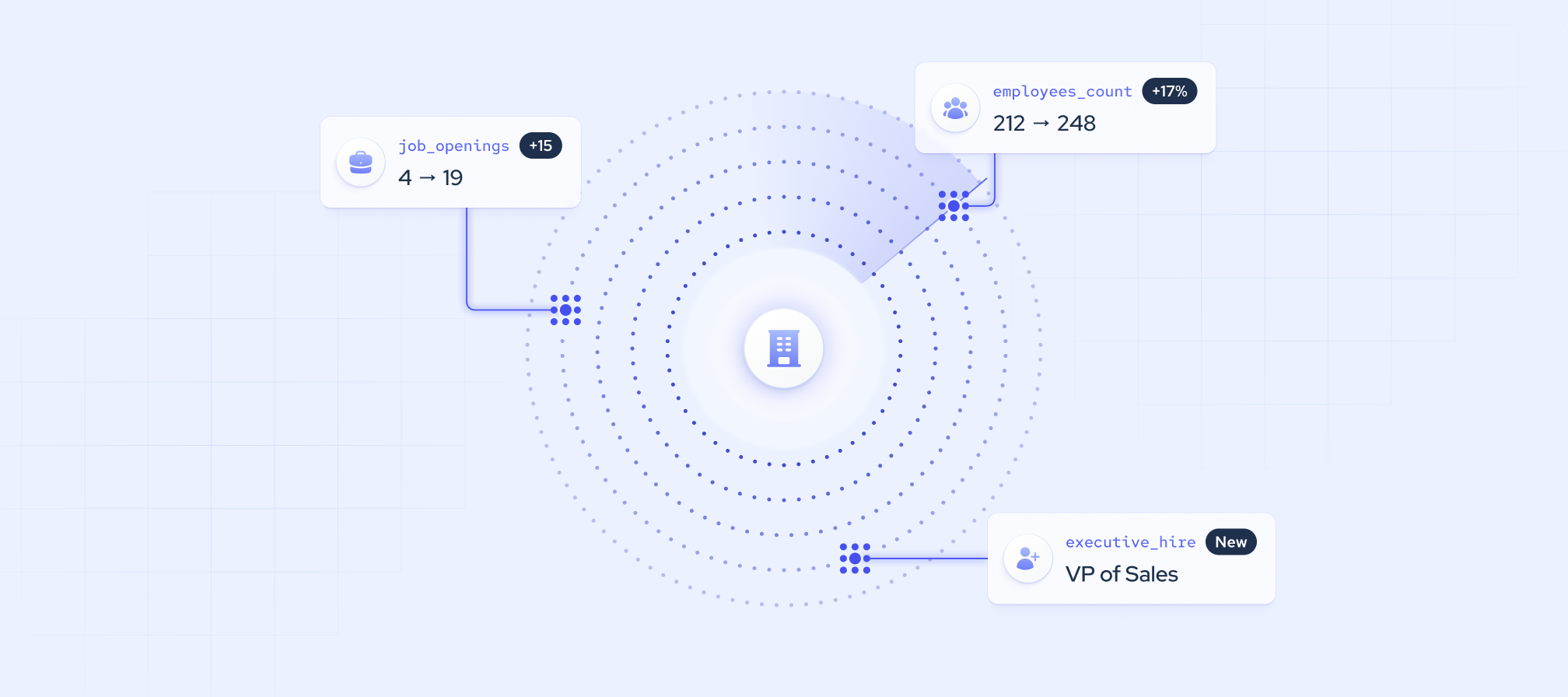
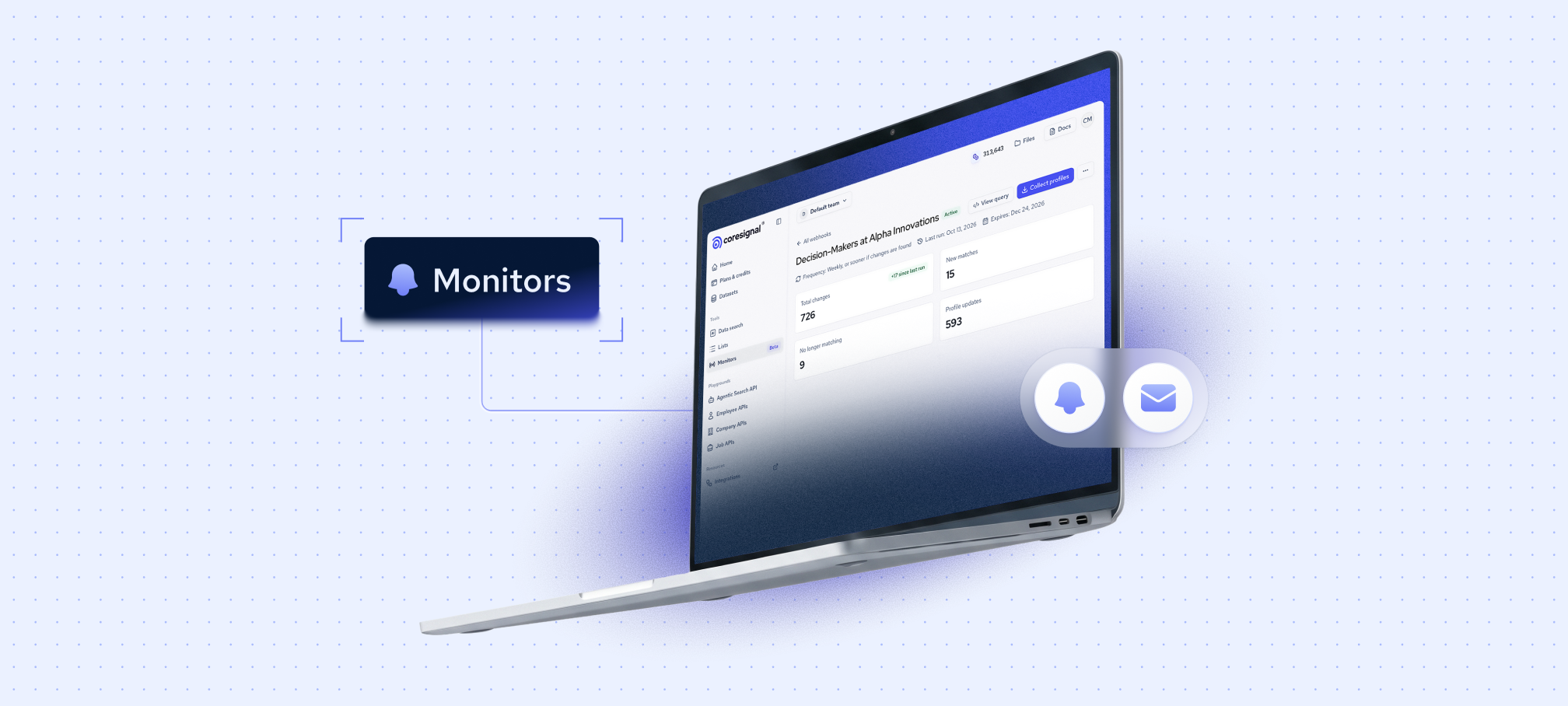
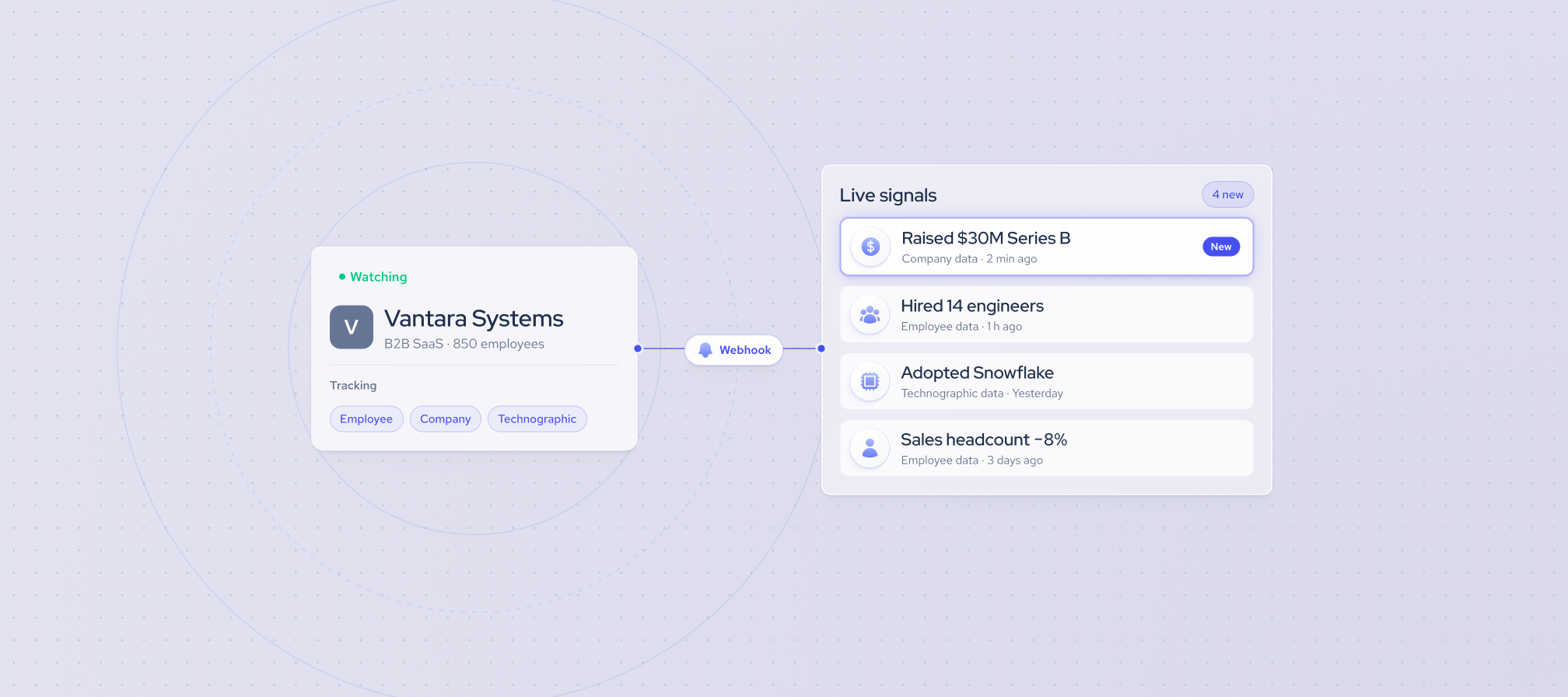
Coresignal Monitors track changes in the companies and employees that match your search, so you don’t have to rerun the same search and compare results by hand. They work with you describing who or what you want to follow, review a preview of matching records, and start monitoring.
Once a week, Monitors check your search again and report what changed: new matches, updated records, and records that no longer match. You can review the summary in the self-service platform and collect the changed records when you need the full details.
How to set up Coresignal Monitors for Slack: a step-by-step guide
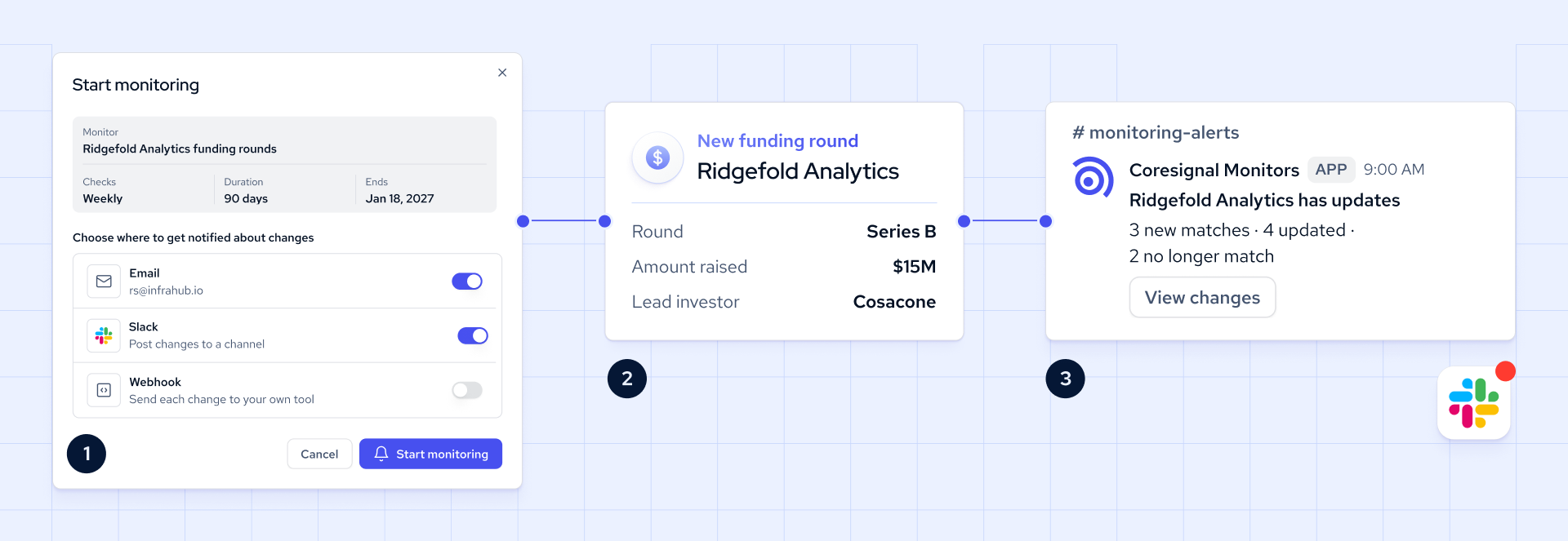
Setting up Monitors for Slack takes just a few steps and requires no code. You connect your Slack workspace once for your whole team, then choose which monitors post to which channels. Slack is off by default, so your existing monitors keep working as they do now until you turn it on.
- Connect your Slack workspace. Approve the connection in Slack once, and your whole team is set up. No code, webhooks, or third-party tools needed.
- Turn on Slack for a monitor. Switch on Slack delivery for any new or existing monitor and invite Coresignal app to a Slack channel.
- Choose a channel. Pick which channel updates should appear (for example, #sales-alerts or #recruiting-feed) and send a test message to make sure everything works.
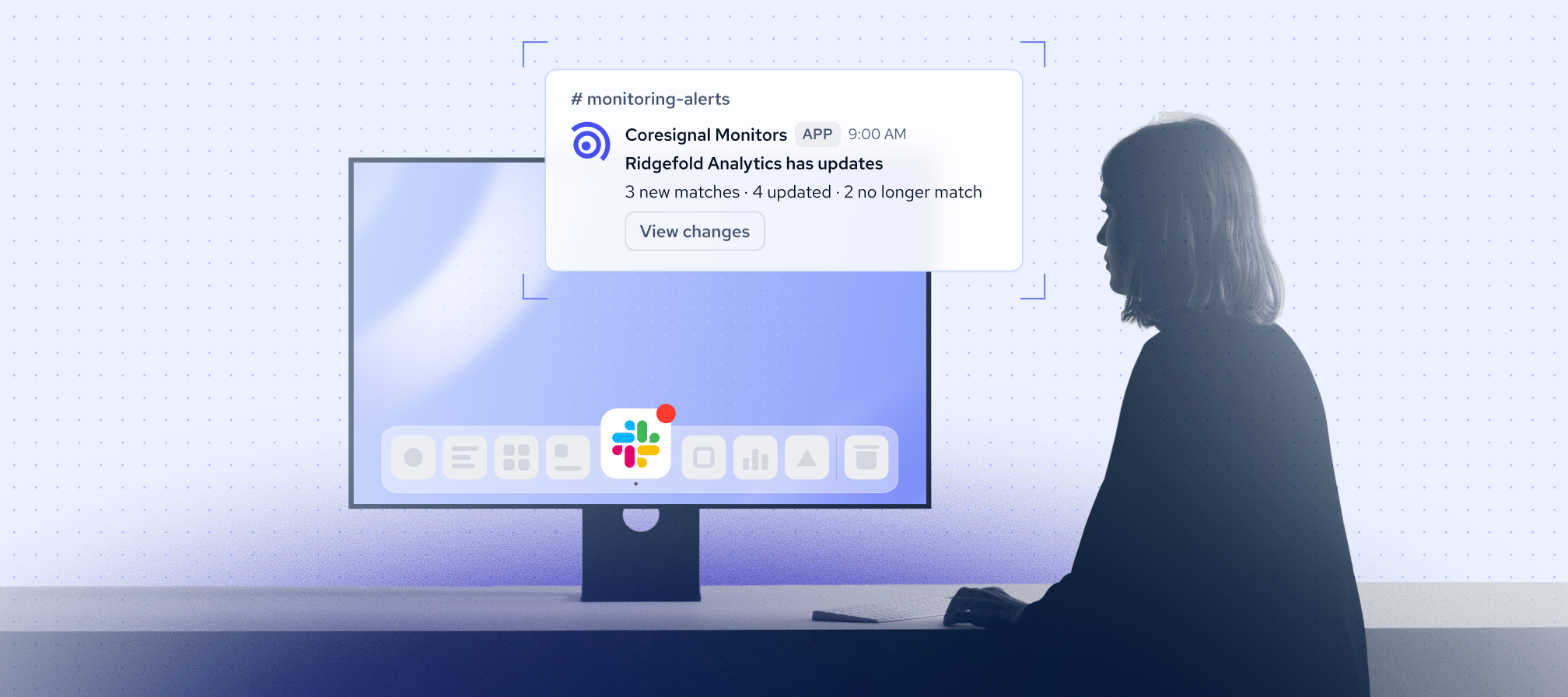
- Get updates in one click. Each week, a summary is posted to your channel. Select View changes to open the full list in the self-service platform.
Once set up, your channel gets a weekly summary to your Slack channel, alongside other update destinations, like email or webhook URL (for example, Zapier). Select View changes in the message to open the full list of changes in the self-service platform. To pause Slack updates for a monitor, switch Slack off from its menu. Your channel choice is saved for when you turn it back on. See the full setup guide in our documentation.
What are the benefits of Coresignal Monitors in Slack
Email updates work well for one person, but they’re easy to miss. And when nobody sees a change, nobody acts on it. Sending Monitor updates to Slack puts them in front of the people who need them, in the place where they already work together.
- The whole team sees every update. Changes post to a shared channel instead of one person’s inbox, so staying informed doesn’t depend on a single person checking email.
- Each update reaches the right team. Different monitors can post to different channels or workspaces. Account changes can go to sales, talent pool changes to recruiting, and agencies can keep each client’s updates in a separate workspace.
- Less time between update and action. If you view changes in Slack, you can just open the full list with changed records at the top, then collect only the ones you need.
- No code to set up or maintain. Getting updates into Slack used to mean building your own integration. Now anyone on the team can set it up in a few steps.
- Getting updates costs nothing. Monitoring and Slack delivery are free. You only spend credits when you collect changed records.
Summary
Company and people data is most useful when it’s fresh. A job change, a new hire, or a company that newly fits your search matters most in the week it happens, not a month later when someone gets around to rerunning the search. Monitors keep track of those changes for you, and Slack brings them to the team that can act on them.
If you’re new to Monitors, start with one search your team already repeats, like accounts that fit your ideal customer profile or candidates in your talent pool. Set it up once, connect a channel, and let the weekly updates show you what’s changing.