


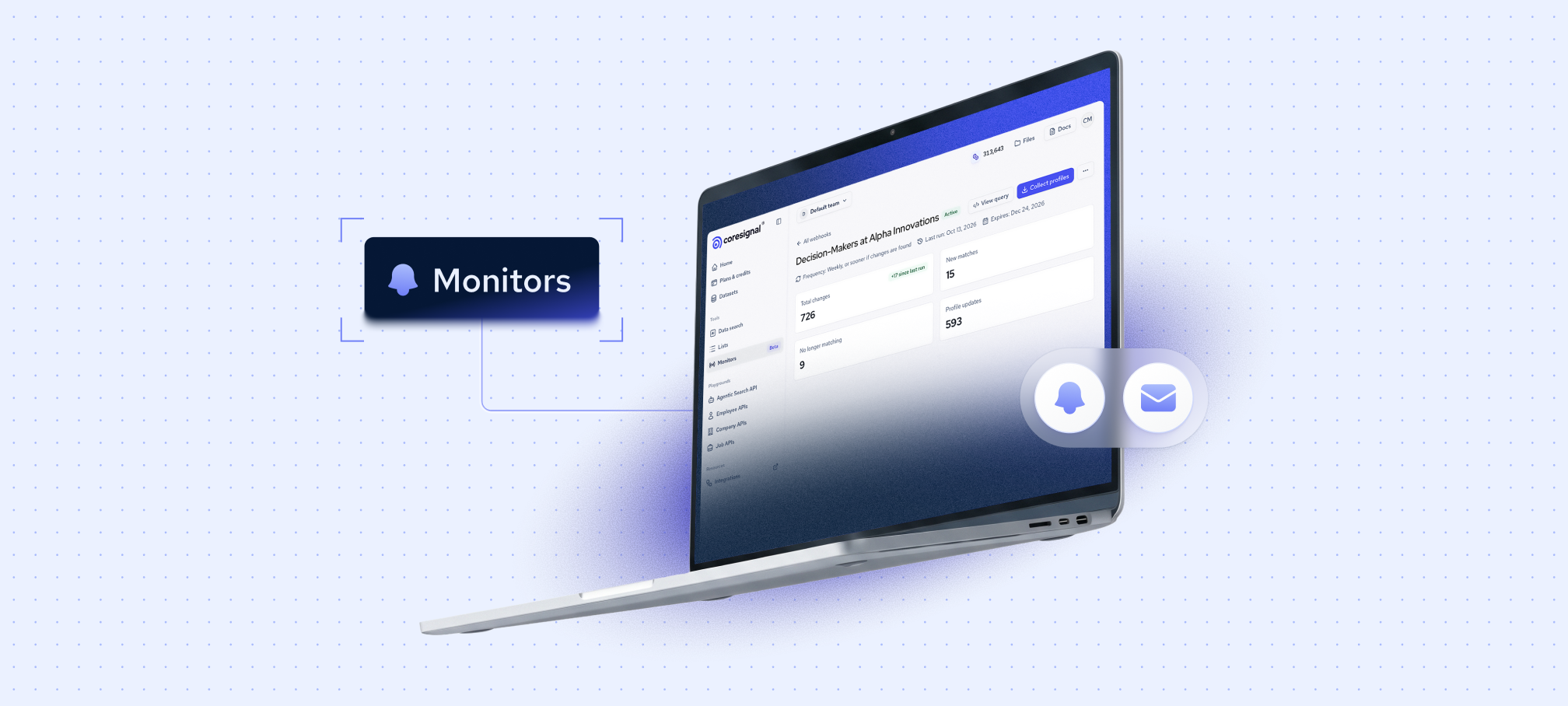
If your team still assumes that a well-built prospect or candidate list stays useful for months, let me tell you that in practice, it starts aging the moment you export it.
People change jobs, get promoted, and move cities, while new people who fit your criteria appear every week. We kept hearing the same problem: outdated job titles led to wasted outreach and, in some cases, complaints from their own customers. Finding the right people once is the easy part. But keeping your lists up to date is where most teams fall short.
Now your team can do it with a no-code tool: Coresignal’s Monitors.
What are Coresignal Monitors
Monitors is a feature in the Coresignal’s self-service platform that runs on Multi-Source company and employee data APIs and turns AI Data Search prompts into lists that stay up to date. With Coresignal Monitors, you can set up webhooks for your data lists without any technical skills.
Instead of giving you a one-time snapshot, a monitor keeps checking your search and tells you what changed. When it detects a change, you get an email notification, which can be as often as daily. You can also see the results on the Monitors report page in the Self-Service dashboard. If nothing changes, you get a weekly update to your email instead.
With Monitors, you can:
- Track a search, not a fixed list. Profiles that start matching your criteria appear on their own.
- Set up alerts yourself, in minutes. You don’t need any engineering skills. Each monitor is a webhook subscription, created in the dashboard without touching the API.
- Get updates in the tools you already use. Send changes to your own webhook URL to feed your CRM, ATS, or automations, with no manual exports or copy-pasting.
- Stop paying to re-check your whole list. Monitoring is free, and credits are spent only when you collect profiles that changed.
Each monitor returns:
- Total matches – all profiles that currently match your search.
- New matches – profiles that started matching since you created the monitor.
- No longer matching – profiles that stopped matching since you created the monitor.
- Profile updates – matching profiles whose details changed since you created the monitor.

How to start monitoring
Setting up a monitor takes a few minutes, and the regular checks run on their own after that.
1. Describe who or what you’re looking for. In AI Data Search, write your criteria in plain language, for example, “Senior Software Developers in Pittsburgh with 5+ years of experience” or "Identify companies in Austin with more than 50 employees that use Salesforce”.
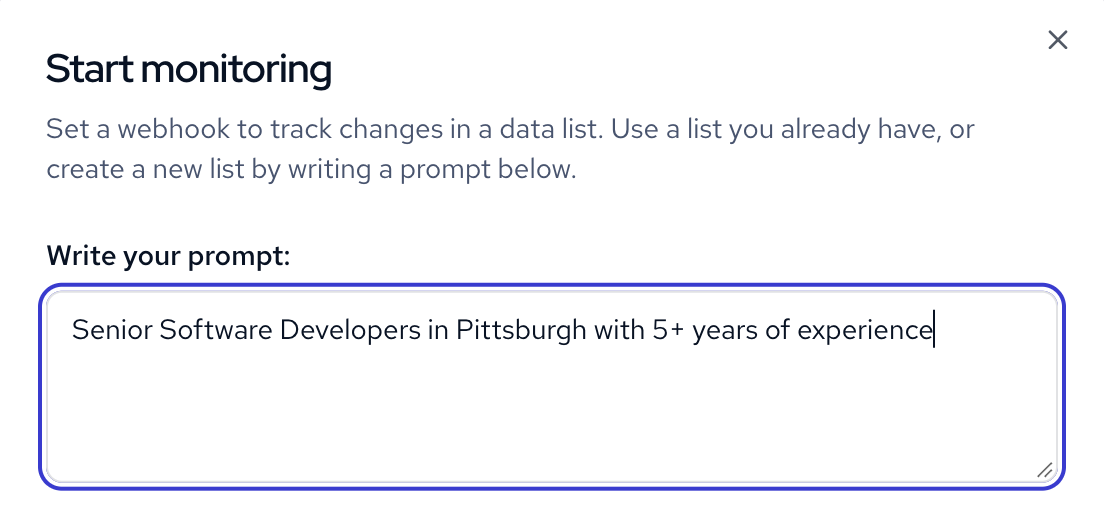
2. Start monitoring. Double-check your criteria first and the returned results, as a monitor’s search can’t be edited after it’s created. Then, press “Start monitoring” in the top right corner.
.png)
3. Set up your webhook. Choose whether to get email notifications about tracked changes, add your webhook URL if needed and press Create Webhook.

4. Review what changed. If you turn on email notifications, you’ll get an email whenever there’s a new match to your prompt. Otherwise, you can review all your active and expired Monitors in the self-service platform. The Monitors dashboard lists all your active and expired monitors, with each one’s match counts, status, and last run date.
5. Collect the profiles that changed. Download only the updated profiles, so your costs follow how much changes, not how big your list is.
Who Monitors are for
Monitors are built for teams who need their lists to stay current but don’t want to set up webhooks through API endpoints or maintain lists of profile IDs. Let's explore example prompts for different use cases:
- GTM and sales technology teams:
Find VP of Sales at SaaS companies with 200–500 employees
Your ideal customer profile often remains consistent, but the individuals who match it are constantly evolving. The new decision-makers will be identified and added to your report as soon as they meet your criteria. At the same time, contacts who have left or changed roles will be flagged, keeping your outreach lists accurate and actionable.
- HR and talent intelligence teams:
Data engineers with Python experience in Austin
It is important to recognize that your strongest candidates are not static. People develop new skills, take on new roles, and relocate, which means a one-time search quickly becomes outdated. By using this or similar prompts you can monitor for newly matched profiles each week. Candidates who move into other roles or locations are automatically removed, allowing your team to focus only on those who continue to meet your requirements.
- Investment and market research teams:
Fintech companies in Arlington with 50–200 employees
Constant monitoring ensures that your watchlist remains up to date. Companies that grow into your target range are added as new matches, while those that no longer fit are flagged. This approach keeps your research current without the need to manually re-run searches.
How much do Monitors cost
Monitoring itself is free, so you can watch your search for as long as you need without spending any credits. Credits are used only when you collect the profiles that changed.
To try Monitors before you commit, sign up for a 7-day free trial. Test different prompts, see what Multi-Source company and employee data returns for your criteria, and choose a plan when you’re ready.