.jpg)
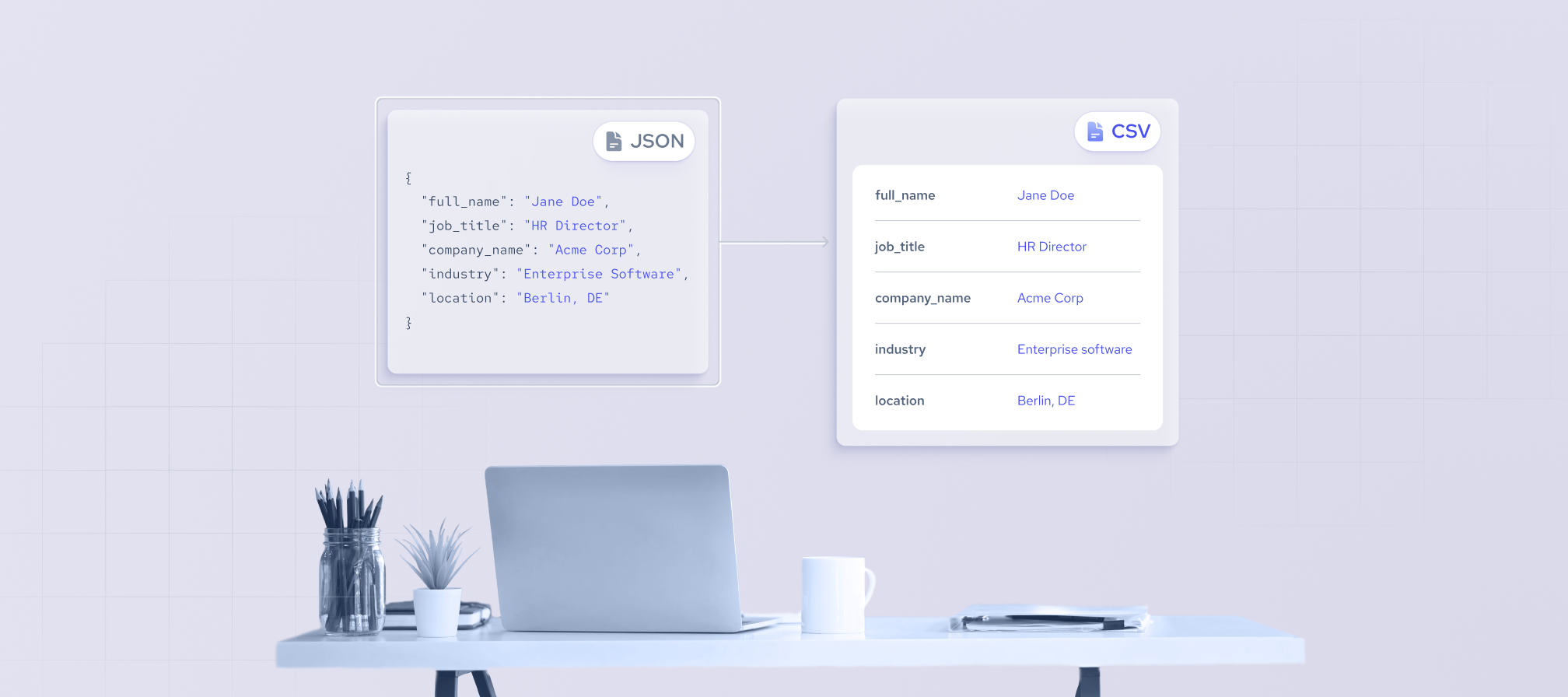
Working with JSON is fine. That is, until you actually need to use the data in real-life scenarios.
Marketing teams want to use their spreadsheets on Google Drive. Sales teams live in Excel. Compliance teams need flat files they can audit without writing a single line of code. Yet many data pipelines return JSON by default, leaving a gap between where the data lives and where decisions are actually made.
Converting JSON to CSV closes that gap. It's one of those tasks that sounds trivial until you're dealing with nested objects, inconsistent key structures, or large dataset. Suddenly, a request to "just convert JSON" becomes a real engineering decision.
This guide covers how to build a B2B list, how to convert JSON to CSV without using Python, and how keep an eye on the most common issues.
Why it's important to convert JSON to CSV for data analysis
JSON works well as a transport format. It's flexible, human-readable enough for developers, and handles nested, complex data structures with ease. But when it comes to actual analysis, that flexibility becomes a liability.
Many stakeholders who need B2B data don't work in code editors; they want to open the files instantly in Excel and Google Sheets, letting teams sort, filter, and pivot data without writing a single query. That alone makes conversion a practical necessity for any team where data consumers outnumber data engineers.
Business intelligence tools like Tableau, Power BI, and Looker are built around flat, tabular data. Feeding them a raw JSON file with nested arrays means extra preprocessing steps, more room for error, and a slower time to insight. CSV eliminates that friction, as each row maps to a record, each column to a field.
There's also the question of storage and processing efficiency. CSV files are lighter, faster to scan, and easier to version-control when you're dealing with large B2B datasets, such as company records, job postings, or employee profiles with hundreds of fields. Analysts running models or building dashboards can load a well-structured CSV in seconds, whereas parsing deeply nested JSON requires additional logic.
There are three main ways to convert JSON to CSV efficiently, each suited to a different use case: using online tools for quick, low-volume conversions; writing Python scripts for automated, high-volume pipelines; and leveraging built-in functions in data tools like Pandas or Excel Power Query.
This article is created for non-technical users, so I will focus only on the first option.
Convert JSON to CSV using an online converter
For one-off conversions or quick data checks, online tools are the fastest way to convert JSON to a usable spreadsheet. No setup, no code, no dependencies. Simply upload your data file and download the result.
Advantages
Online converters require zero technical knowledge. Anyone on the team – an analyst, a recruiter, or a sales manager – can convert a file in under a minute. Most tools are free and work directly in the browser, meaning there's nothing to install or maintain.
Disadvantages
These tools come with real limitations for serious data work. Most cap file sizes are a few megabytes, making them impractical for large datasets. You're also uploading potentially sensitive business data to a third-party server, which raises compliance concerns. Because the conversion is a manual step, it can't be automated or scheduled, and every conversion requires someone to do it.
Best suited for
One-time or infrequent conversions, small files, quick data previews, or non-technical users who need a readable version of a JSON file without involving engineering.

How can I get a B2B data list in CSV format?
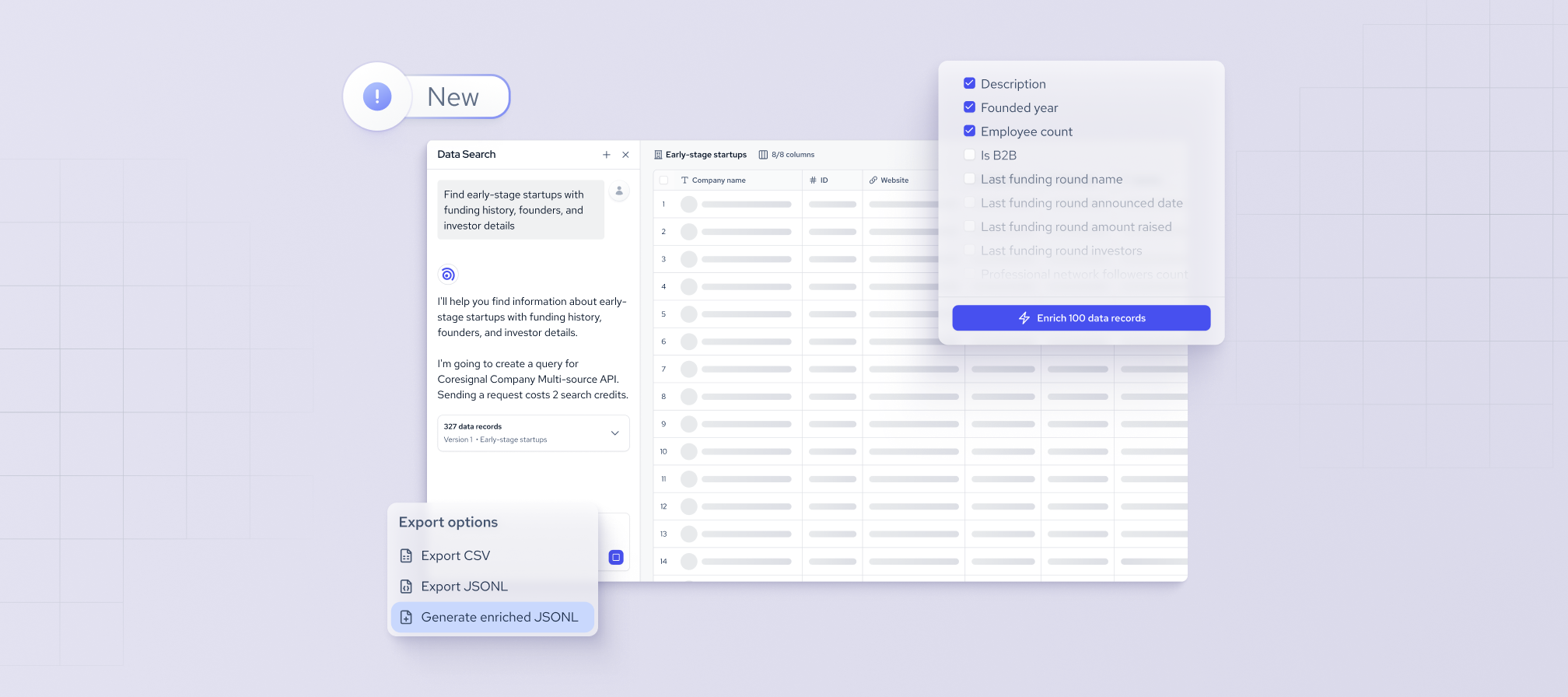
If you are not willing to use online converters but also need to build B2B lead lists in CSV, you could try out Coresignal's new Data Search tool. It's the perfect way for non-technical users to preview, refine, enrich, and export a custom leads list in just a few minutes.
First of all, you'll have to register for a free account:
1. Write your prompt
Navigate to the Data Search tool, and write down your prompt. Let's say you want to find mid-sized companies in North Carolina. Enter your prompt, and your tool will return a list for preview:

2. Refine your search query
This particular query returned more than 2000 results. Let's say you want to set up a call with all of these companies, so you want a smaller list. You can refine your results in chat: share the industry or other details about the company until you have a list that is right for you.
3. Enrich the list
Once you have your list, you can enrich it with even more details. Press the Enrich button and select the fields that you want to see added to your list. You can choose as many fields as you want, th credit cost will be the same.
Let's say you want to see the exact employee count and if the company is B2B.

4. Export as CSV
At the end of the process, you'll have this list with your prefered fields you can export as CSV or as JSONL. You could also generate a enriched JSONL that contains all 500+ data fields from our multi-source dataset.

Step-by-step: how to convert JSON to CSV using an online tool
If you exported your list as a JSON/JSONL, you can convert the file using an online tool. The steps below apply to most browser-based JSON-to-CSV converters.
Step 1: Open the converter in your browser
Navigate to your tool of choice. Feel free to choose the one that fits your company's security and compliance requirements, and we generally recommend to:
- Check where the data is processed (on your device or in browser)
- Review the tool's security and compliance practices
- Analyze the reviews online to see if there were no prior data security issues
No account or login is typically required.
Step 2: Input your JSON data
Most tools give you two options: paste raw JSON directly into a text field, drag and drop the file, or upload a .json file from your machine. For small datasets, pasting works fine. For anything larger, use the file upload option.
Step 3: Validate the structure
Before converting, check that the tool has correctly detected your JSON structure. Well-formed JSON (an array of objects with consistent keys) converts cleanly. Nested objects or arrays may flatten unpredictably depending on the tool.
Step 4: Configure output options (if available)
Some converters let you choose the delimiter (comma, semicolon, tab), define which fields to include, or set how nested data should be handled. Adjust these settings before downloading.
Step 5: Convert and download
Click the convert button. The tool will generate a preview of the CSV output. Review the first few rows to confirm the column headers and values look correct, then download the .csv file.
Step 6: Open in Excel or Google Sheets
Import the downloaded file into your spreadsheet tool of choice. In Excel, use Data > From Text/CSV. In Google Sheets, go to File > Import and select the file. Check that columns are aligned correctly and no data was cut off during conversion.
JSON to CSV conversion: common problems and fixes
JSON-to-CSV conversion should be smooth; however, keep an eye out for several potential issues. Inconsistent structures, encoding quirks, and silent data loss are all common in production pipelines, especially when working with large datasets. Here's what to watch for and how to fix it before it reaches your downstream tools.
1. Working with large JSON datasets
Browser-based tools typically cap out at a few megabytes, but real datasets with company records, job postings, and employee profiles can run into hundreds of megabytes or more. Loading everything into memory at once can cause slowing down or crashing unexpectedly.
Process data in several batches rather than all at once.
2. Handling nested JSON structures
Nested objects and arrays are the most frequent source of broken or incomplete CSV output. A field like {"company": {"name": "Acme", "size": 500}} won't map cleanly to a single CSV column without explicit flattening. Most online tools make a best-guess attempt at this and often get it wrong.
Inspect a sample of your JSON before converting anything. Knowing the nesting depth upfront saves significant debugging time.
3. Fixing encoding and formatting issues
Special characters, such as accented letters, special symbols, or characters from non-Latin scripts, are a quiet but persistent problem. They frequently cause issues, resulting in garbled text or broken imports.
Commas and line breaks inside field values are another common trap. They'll break CSV structure unless values are properly quoted throughout. Date formatting is worth checking too: JSON has no native date type, so dates often arrive as inconsistent strings that need standardizing before the CSV reaches any analytical tool.
Doublecheck special characters, symbols, commas, and data formatting.
4. Validating data after conversion
Never assume a conversion succeeded just because no error was shown. Silent data loss is common, particularly with nested fields, and it won't surface until the analysis produces a wrong result.
A basic sanity check starts with row counts: compare the number of records in the source JSON against the line count in the output CSV. Then spot-check a random sample of rows, focusing on fields that were nested or contained special characters. Verify that numeric fields haven't been cast to strings, and that boolean values have converted correctly rather than becoming empty cells.
Catching these issues at the conversion stage is far cheaper than tracing them back after the fact.
Count the records, spot check random sample of rows, verify numeric fields before using the converted data file.
Turning JSON into actionable data: what to remember
JSON is built for flexibility. CSV is built for usability. The gap between the two is where most teams lose time, and where a methodical approach pays off quickly.
The right conversion method depends entirely on your context. Online tools work for fast, low-stakes conversions. Script-based approaches handle scale and automation. The problems you'll run into (nested structures, encoding issues, silent data loss) are predictable enough that you can build around them before they cause damage.
The underlying principle is simple: the data is only as useful as the analysis it enables. Getting the conversion right means cleaner data for whatever comes next, whether that's a spreadsheet, a BI tool, or an AI model.